destination: A reference to the cell where the image should be placed.
[type]: (Optional) QR code type ("qrcode" (by default), "datamatrix", "azteccode", "hanxin", "dotcode" etc.).
[sizing]: (Optional) Determines the dimensions of the image. There are several possible values:
Insert the image into the cell and maintain its aspect ratio. Selected by default.
Fill the cell with the image and ignore its aspect ratio.
Keep the original image size, which may exceed the cell boundaries.
[lock]: (Optional) Whether to lock the position and size of the image: 0-No, 1-Yes.
Usage Example
The QRCODE() function is easy to use. You just need to enter the URL path to the image and the cell where you want to place the image, and Excel (Calc) will automatically insert the required image:
=QRCODE(text; destination; type)
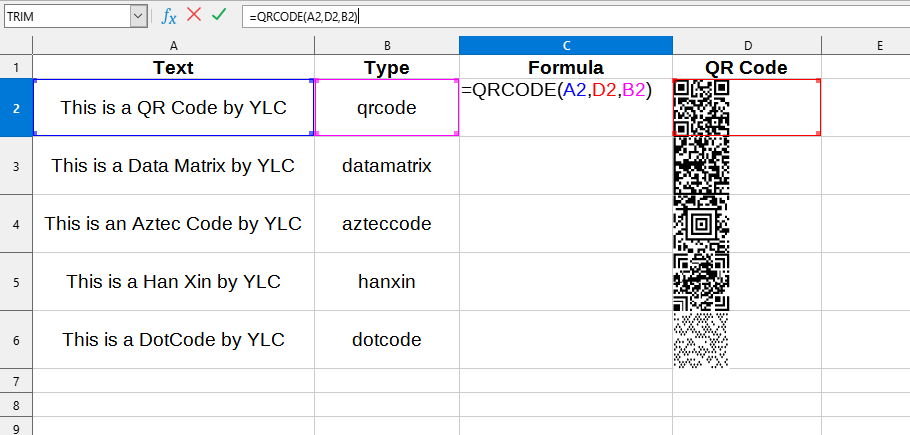
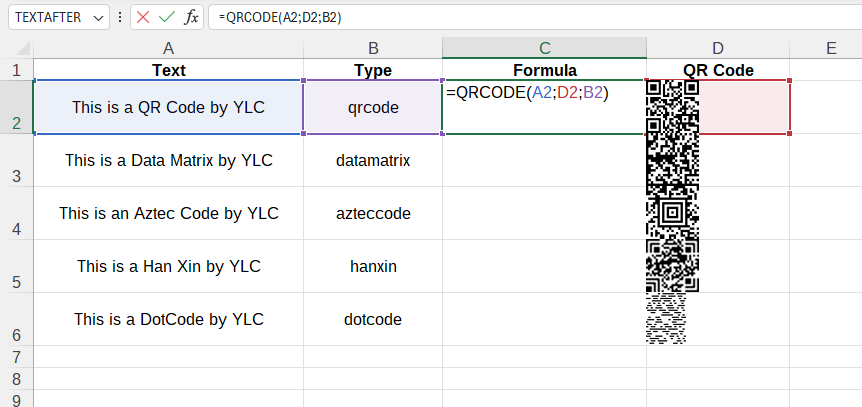
We will have the following result:
In this example, the following values are used:
text:A2 - text to be converted into a QR code ("This is a QR Code by YLC").
destination:D2 - cell where the image will be located ("D2").
type:B2 - QR code type ("qrcode").
Where to Get a Full List of Types for QR Codes?
A full list of available types for QR codes can be obtained on the "QuickChart" page: "Supported Barcode Types"