The IMAGE function in Excel (LibreOffice Calc) allows you to insert an image directly into a table cell using a URL - both for a local file and for an image from the internet.
This improves data visualization by embedding relevant graphics, such as product photos, charts, or icons, next to the cell contents.
Users can also control image size and alignment within the cell for a clearer and more customized layout.
source: URL path of the image file using the "https://" protocol or a local path.
destination: A reference to the cell where the image should be placed.
[sizing]: (Optional) Determines the dimensions of the image. There are several possible values:
Insert the image into the cell and maintain its aspect ratio. Selected by default.
Fill the cell with the image and ignore its aspect ratio.
Keep the original size of the image, which may exceed the cell boundaries.
Adjust the image size using height and width arguments.
[height]: (Optional) Set image height in pixels.
[width]: (Optional) Set image width in pixels.
[lock]: (Optional) Whether to lock the position and size of the image: 0-No, 1-Yes.
If only one of the height/width arguments is specified, the image aspect ratio will be preserved according to the provided argument.
Example of Usage
Example 1
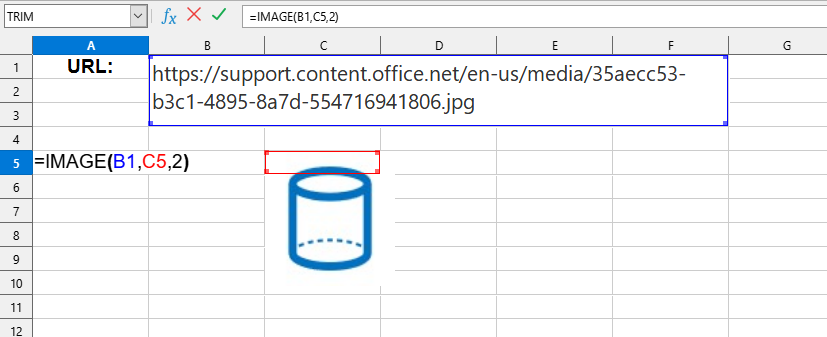
The IMAGE() function is simple to use. You just need to enter the URL path to the image and the cell where the image should be placed, and Excel (Calc) will automatically insert the required image:
=IMAGE(source; destination; sizing)
We will have the following result:
In this example, the following values are used:
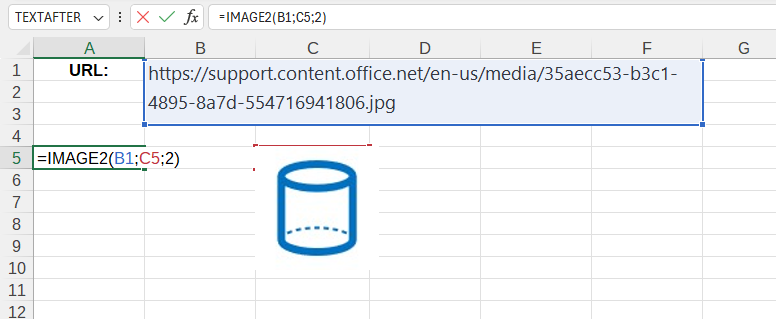
source:B1 - path to a file on the internet ("https://support.content.office.net/en-us/media/35aecc53-b3c1-4895-8a7d-554716941806.jpg").
destination:C5 - the cell where the image will be located ("C5").
sizing: keep the original image size ("2").
Example 2
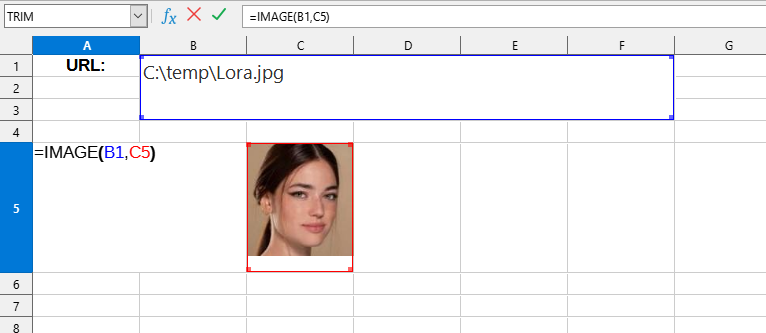
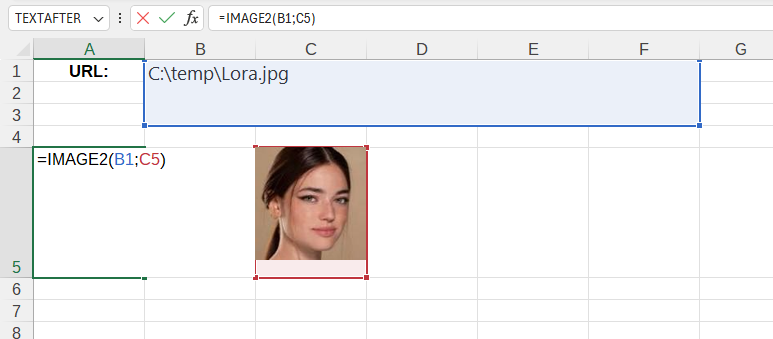
In this example, the following values are used:
source:B1 - path to a file on the PC ("C:\temp\Lora.jpg").
destination:C5 - the cell where the image will be located ("C5").
For Excel, this function is named IMAGE2 to avoid conflicts with the built-in IMAGE function.