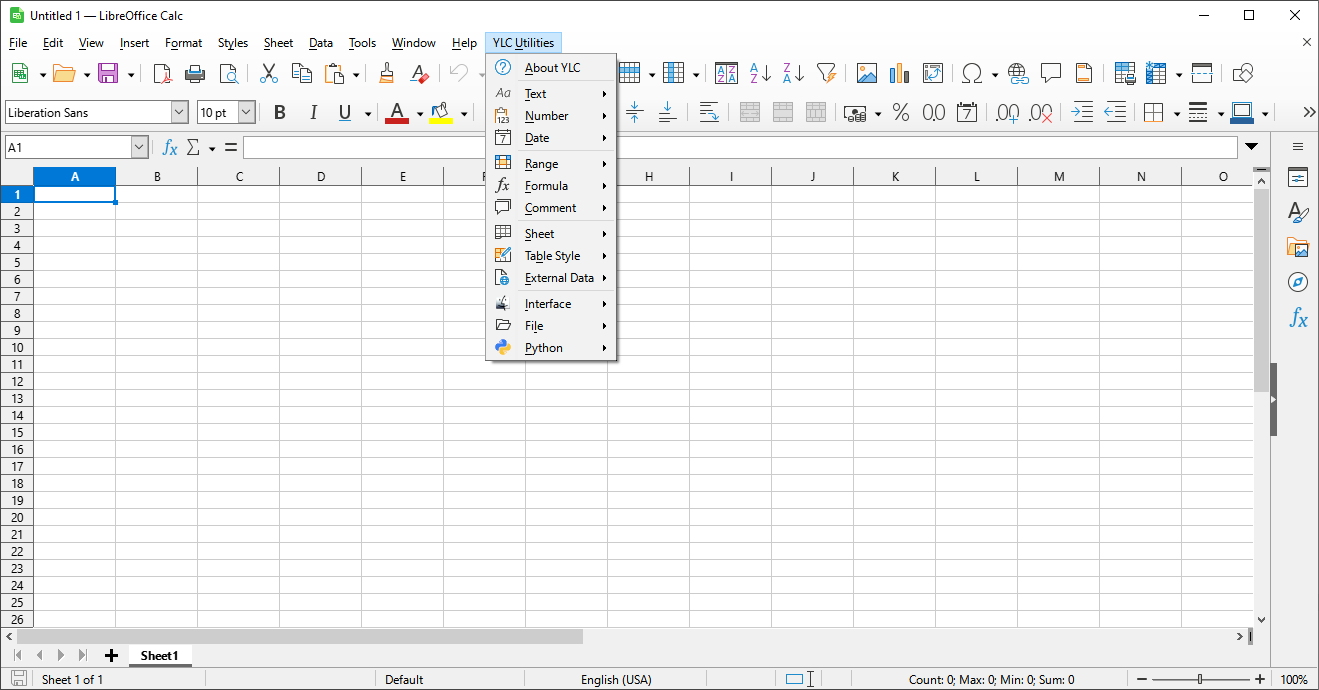
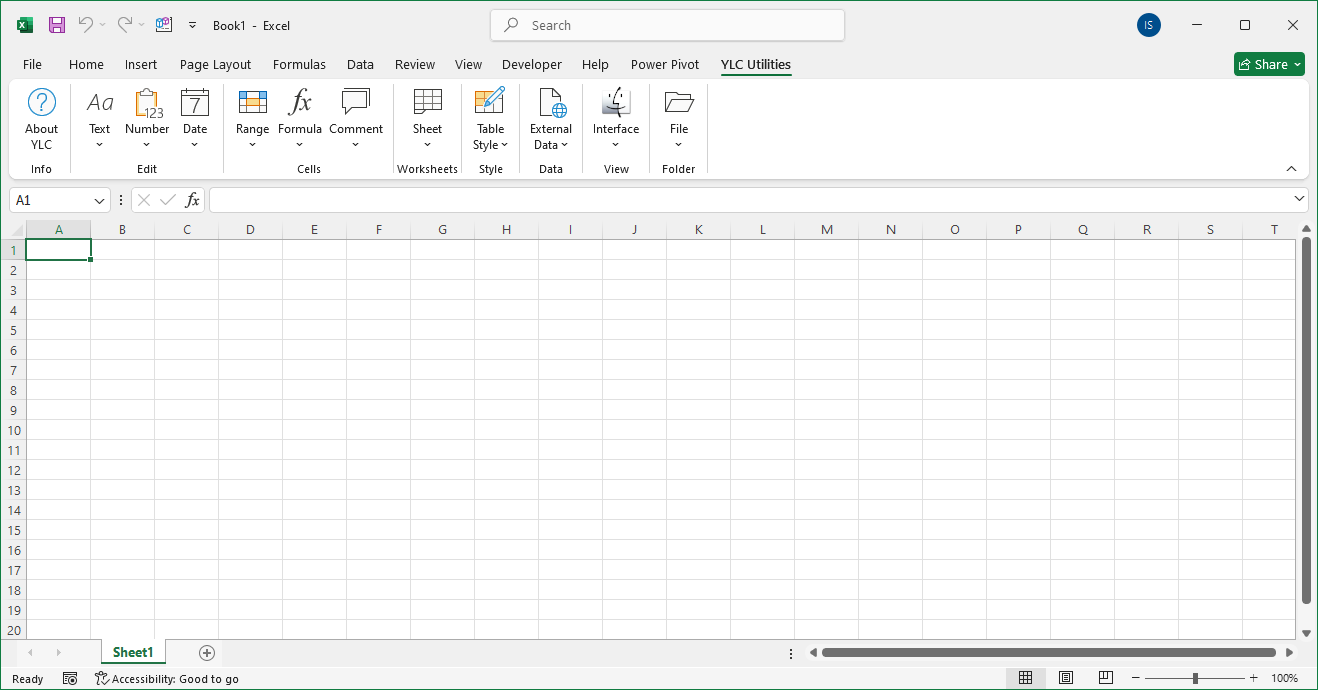
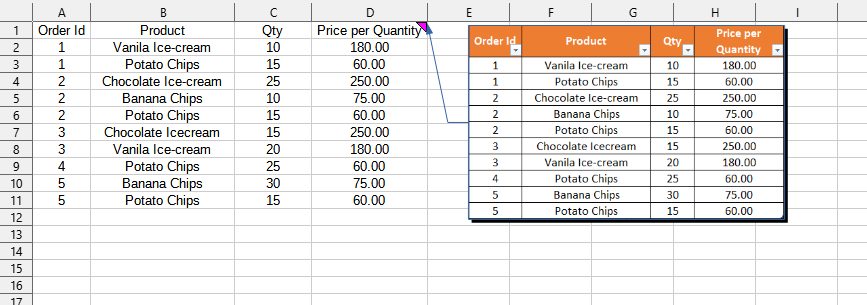
This utility allows you to insert data directly from a table image into your Excel (LibreOffice Calc) sheet. It automatically recognizes tabular data in the uploaded image and converts it into editable cells. This greatly simplifies the data entry process by eliminating the need for manual typing.
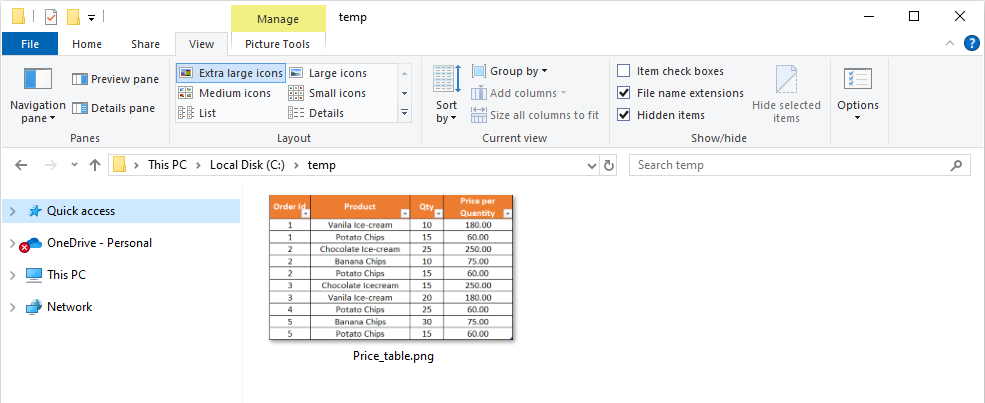
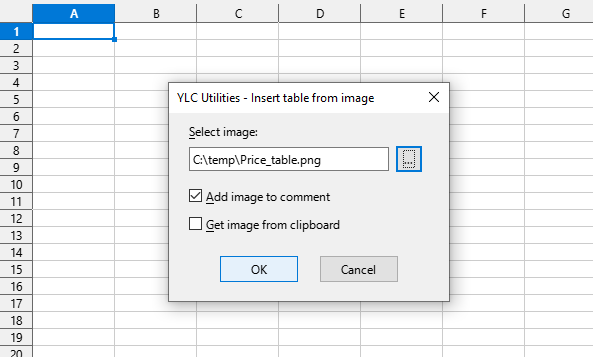
After applying:
Click
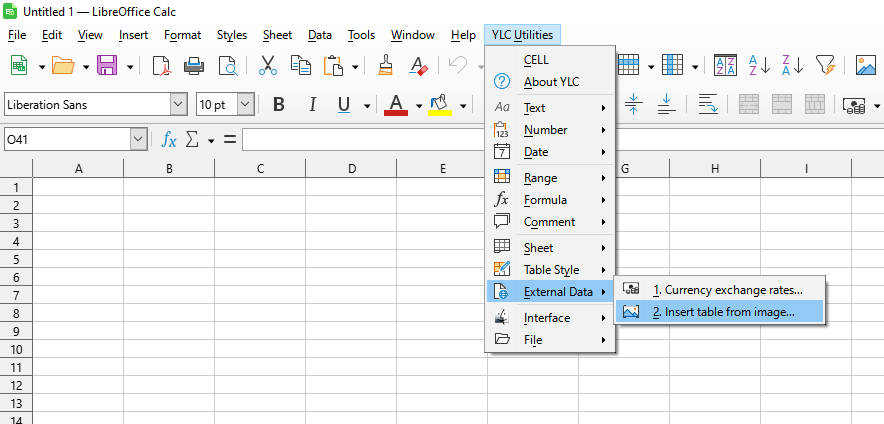
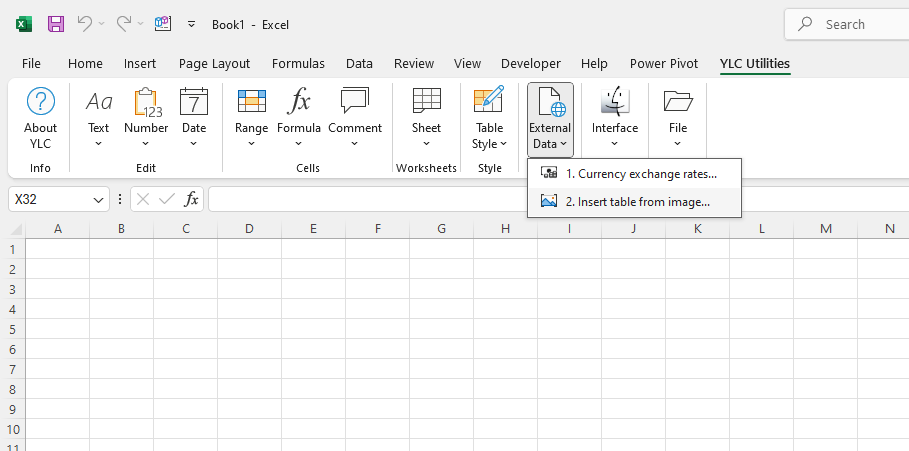
To recognize tables, this tool uses the Google Gemini website. Using artificial intelligence tools may involve sending and processing your data on external servers, so avoid sharing sensitive or personal information if you are unsure about the service's privacy policy.
By using this tool, you are guaranteed to save time and effort. However, the actual time savings depend on how often you use Excel (Calc), the amount of data you are working with, and how often you use this tool.
You can use the
After that, this function will be available in all files that will be opened in Excel (LibreOffice Calc).