[sizing]: (Optional) Defines the image dimensions. There are several possible values:
Insert the image into the cell and preserve its aspect ratio. Selected by default.
Fill the cell with the image and ignore its aspect ratio.
Preserve the original image size, which may exceed the cell boundaries.
[lock]: (Optional) Whether to fix the position and size of the image: 0-No, 1-Yes.
Example of Use
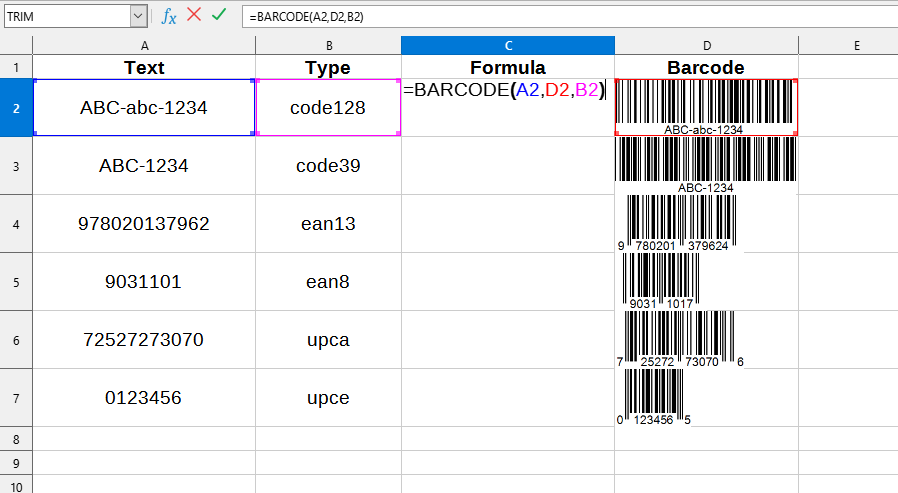
The BARCODE() function is easy to use. You just need to enter the URL path to the image and the cell where the image should be placed, and Excel (Calc) will automatically insert the required image:
=BARCODE(text; destination; type)
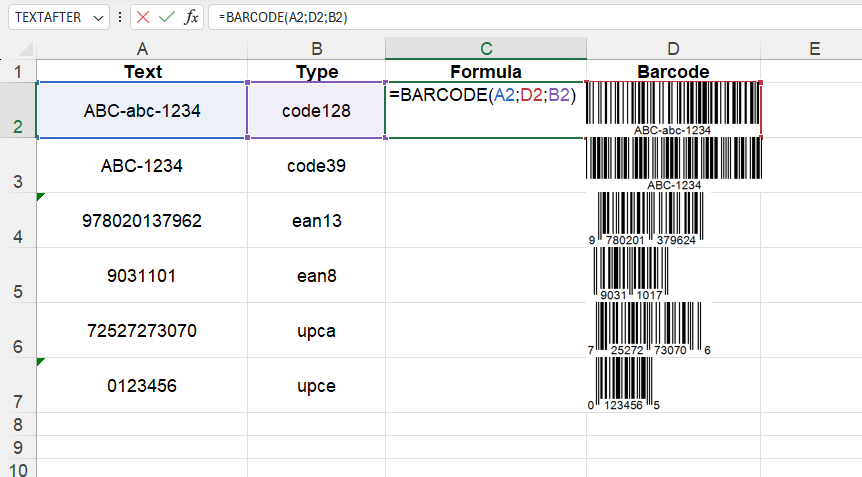
We will have the following result:
This example uses the following values:
text:A2 - the text to be converted into a barcode ("ABC-abc-1234").
destination:D2 - the cell where the image will be located ("D2").
type:B2 - Barcode type ("code128").
Where to Get a Full List of Barcode Types?
A complete list of available barcode types can be found on the following page: "Supported Barcode Types"