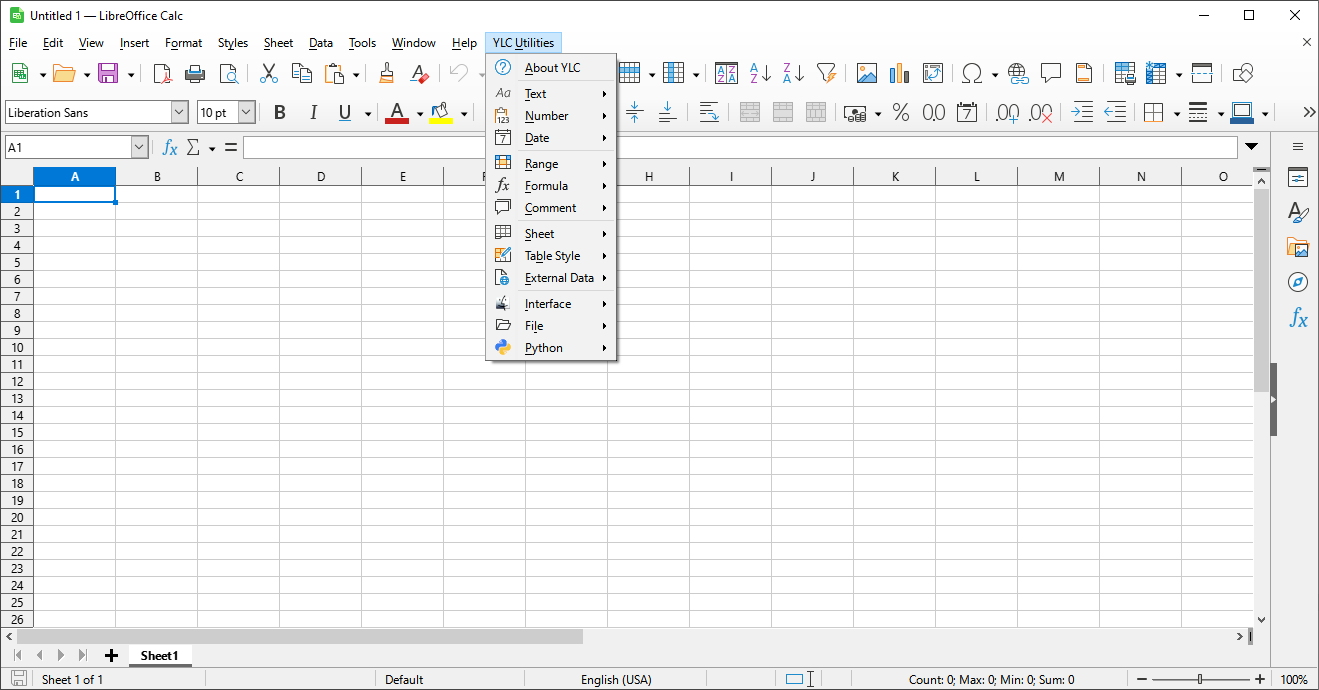
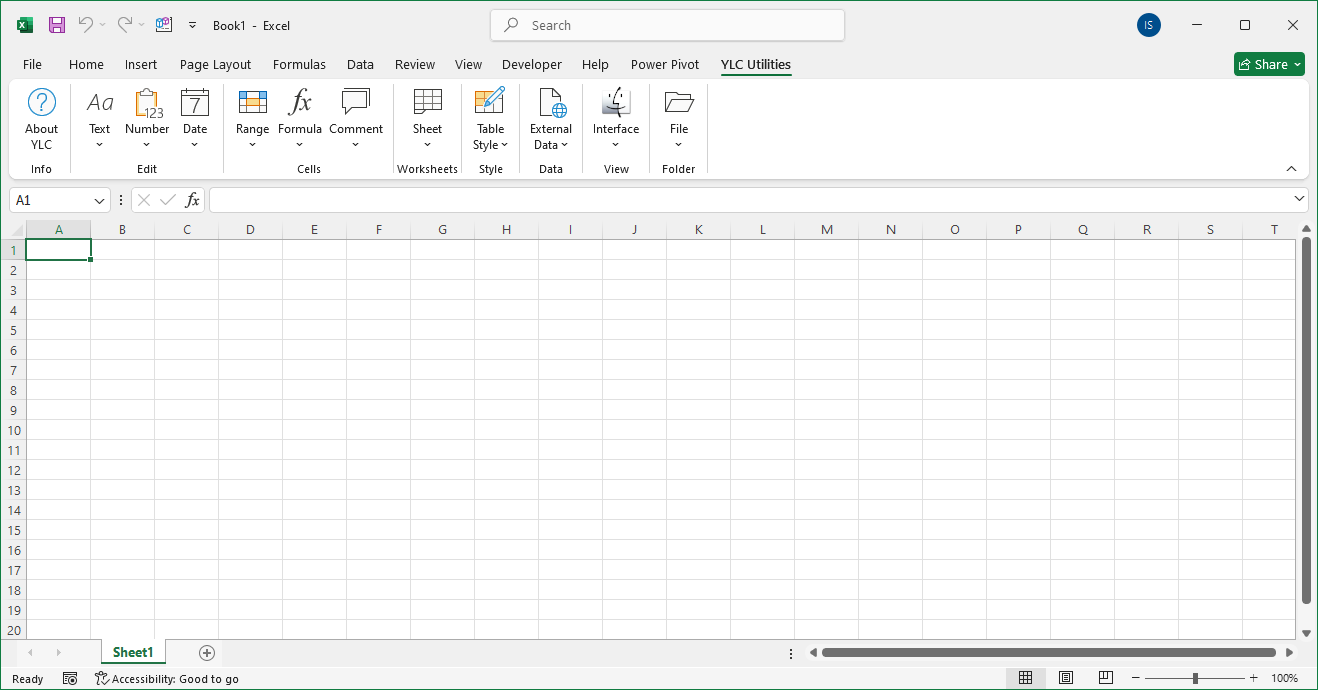
Many people use colors to highlight cells. Working with cell colors can make it easier to understand data in the Excel (Calc) workbook.
Unfortunately, Excel (Calc) does not have built-in functions for using cell colors as conditions in formulas. Building formulas that only count or sum cells of certain colors can become truly cumbersome. This often leads to complex formulas that are error-prone when making changes.
The COUNTBYFONTCOLOR() function counts the number of cells that have a specific font color.
=COUNTBYFONTCOLOR(RangeToCount; SampleCell)
The COUNTBYFONTCOLOR() function is easy to use. You just need to select the desired range of cells and specify the cell that contains the required color, and Excel (Calc) will automatically count the number of cells with the same text color:
=COUNTBYFONTCOLOR(RangeToCount; SampleCell)
We will have the following result:
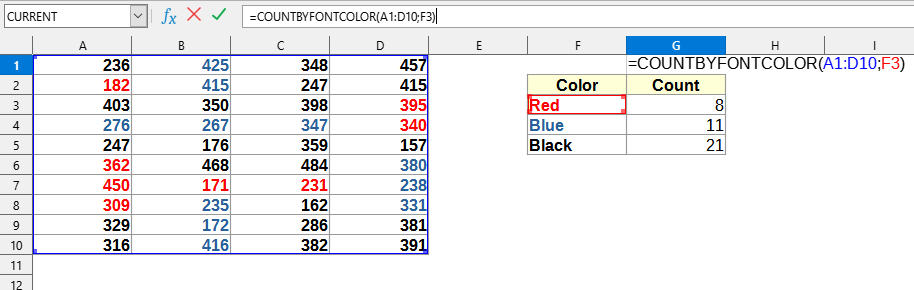
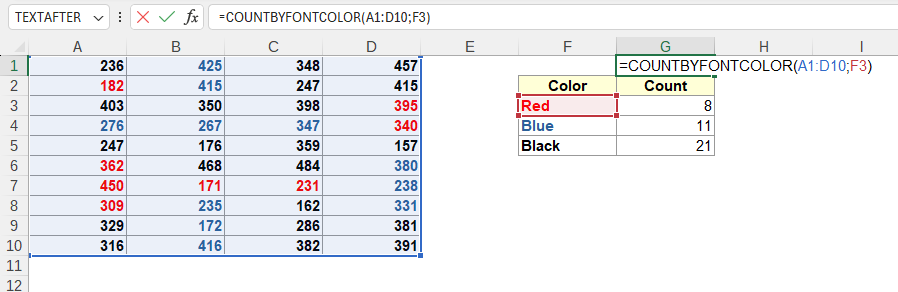
In this example, the following values are used:
Since Excel (Calc) recalculates the formula only if the value in the cell (referenced by it) changes, and not when colors change, some worksheet formulas do not always trigger for an update. In this case, you can use the keyboard shortcut F9 or Ctrl+Alt+F9 to update the formulas in YLC Utilities.
You can use the function COUNTBYFONTCOLOR() by installing the extension YLC Utilities.
After that, this function will be available in all files opened in Excel (LibreOffice Calc).