Many people use colors to mark cells. Working with cell colors can facilitate understanding data in the workbook Excel (Calc).
Unfortunately, Excel (Calc) does not have built-in functions for using cell colors as conditions in formulas. Building formulas that only count or sum cells of certain colors can become truly cumbersome. This often leads to complex formulas that are prone to errors when making changes.
The SUMBYCELLCOLOR() function sums values in cells that have a certain fill color.
Main Features of the SUMBYCELLCOLOR Function
Syntax:
=SUMBYCELLCOLOR(RangeToSum; SampleCell)
Parameters:
RangeToSum: The range of cells to sum.
SampleCell: The cell containing the sample color.
Example Usage
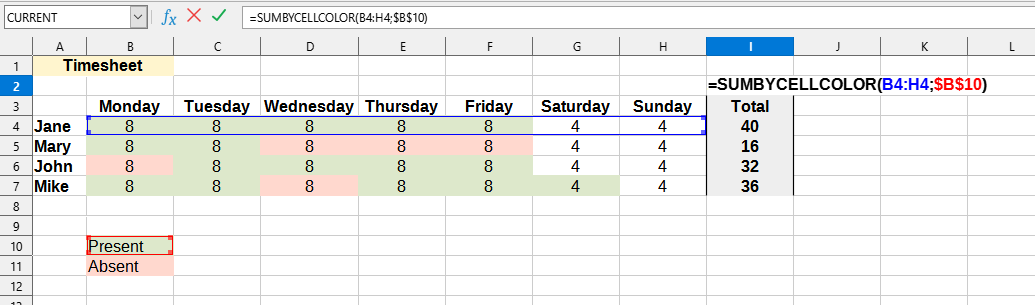
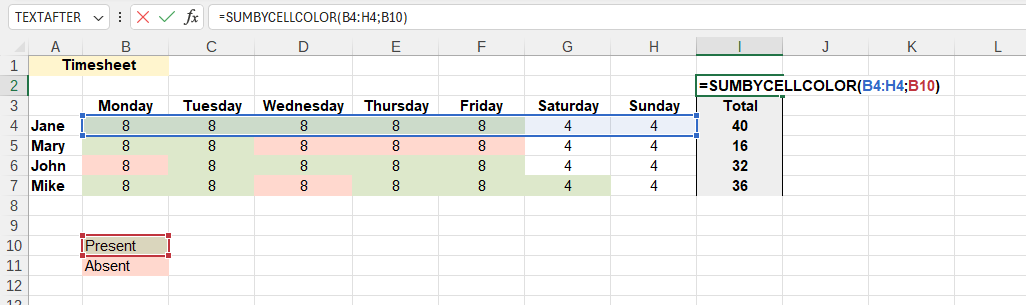
The SUMBYCELLCOLOR() function is easy to use. You just need to select the desired range of cells and specify the cell containing the required color, and Excel (Calc) will automatically sum cells with the same color:
=SUMBYCELLCOLOR(RangeToSum; SampleCell)
We will get the following result:
In this example, the following values are used:
RangeToSum:B4:H4 - Range with cells containing working hours.
SampleCell:B10 - Cell containing the required color (green).
Do you recognize any of these situations?
Not sure if YLC has this function, but it would be useful to be able to count colored cells in a range. Let's say I have 17 pink cells in the range B1:B500. I need a formula that would count these 5 pink cells, even if they contain no text or data.
Can color be used as a SUMIF condition? I have a column that needs to be summed, but only yellow cells.
I noticed that in recent versions of Excel (Calc) it is possible to sort by cell and font color. What about the function Excel (Calc)? Can formulas also work with cell and font colors?
How to count or sum cells by their fill or background color? It seems that in Excel (Calc) there is no formula that allows counting or summing a range of cells based on a specified background color.
Several of my colleagues tracked their work by manually coloring cells depending on who performed a specific task (e.g., John colors the cells he worked on blue, Susan red, Daniel his yellow).
I need to get the total count for each color. I'm looking for something automated so we don't have to sort by color every time to get a summary. The problem seems to be that they manually color the cells, so there are no criteria to base the sum on, other than colors.
Calculation Notes
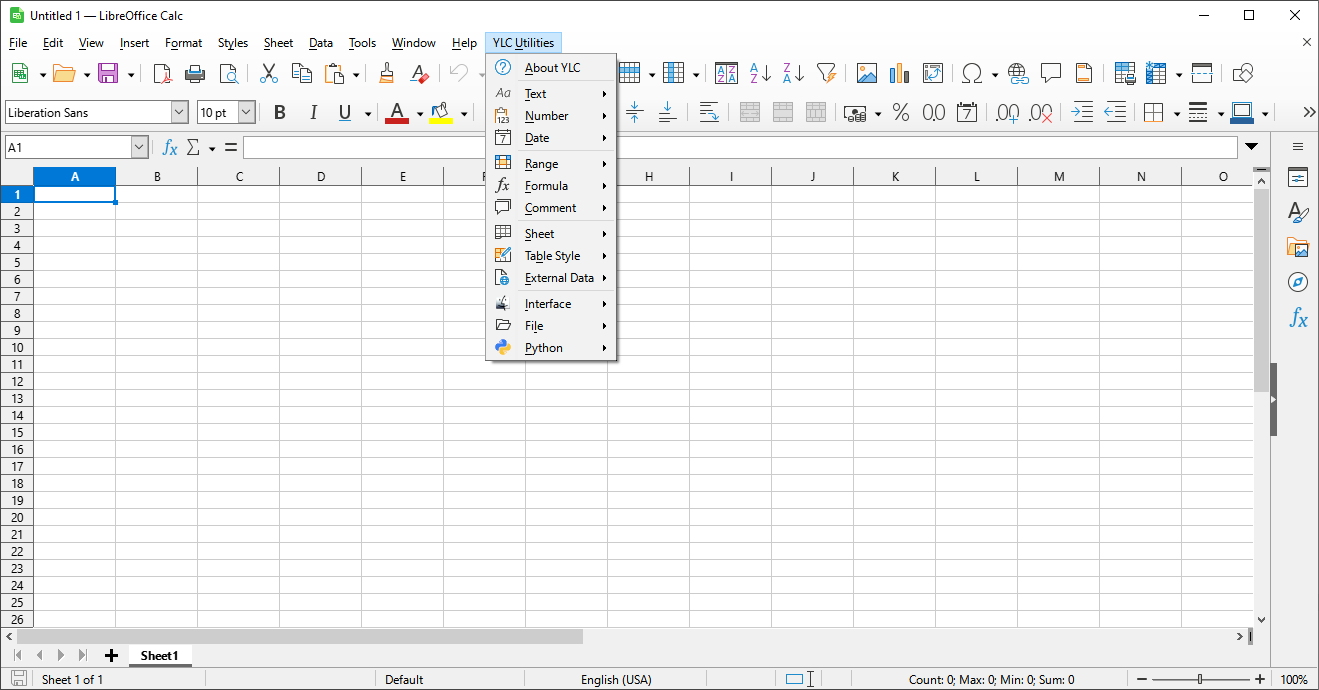
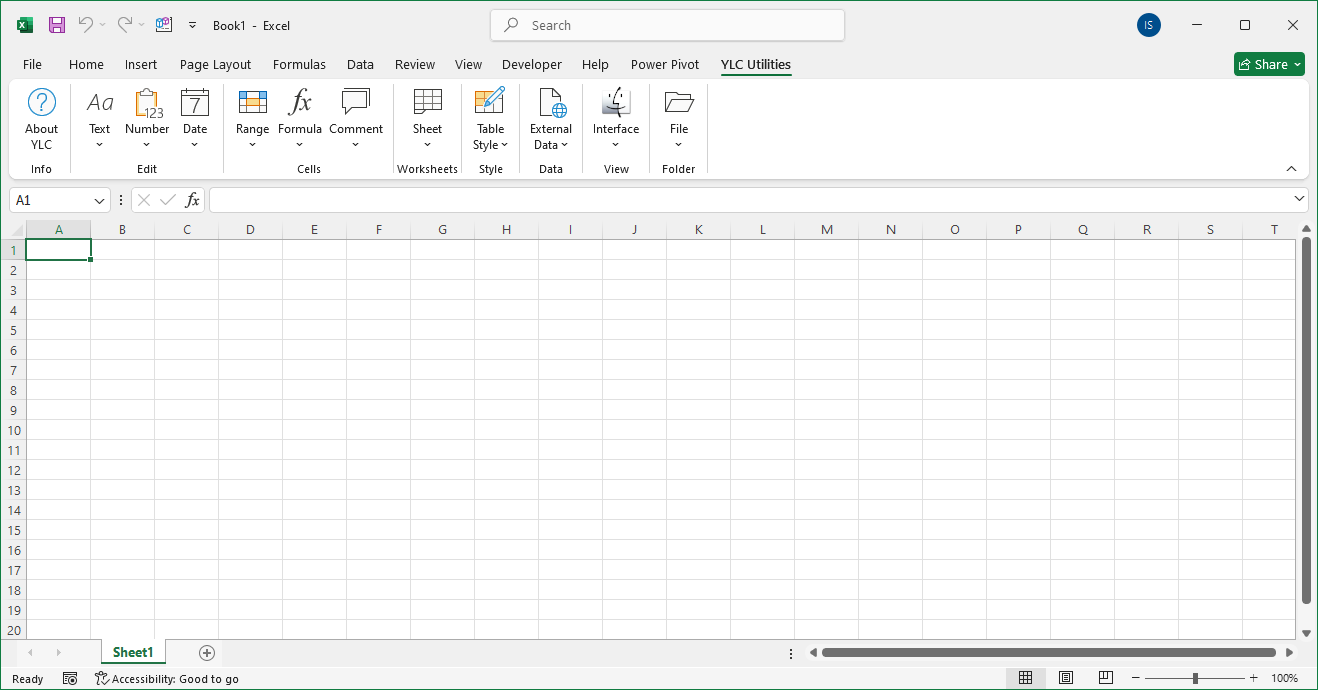
Since Excel (Calc) recalculates a formula only if the value in a cell (to which it refers) changes, and not when colors change, some formulas on the sheet do not always run to update. In this case, you can use the F9 or Ctrl+Alt+F9 key combination to update formulas in YLC Utilities.