The DAX() function is designed to automatically obtain stock prices of companies from the "DAX" index traded on the Frankfurt Stock Exchange directly from the Yahoo Finance website (finance.yahoo.com) for a specified ticker symbol (for example, SAP, SIE) and a selected date. It supports both historical quotes and current real-time values.
This function is convenient for creating stock trackers in Excel (LibreOffice Calc) spreadsheets and will be useful for investors, traders, and financial analysts working with the German stock market.
=DAX(Ticker; [Date]; [Indicator])
The DAX() function is easy to use. You just need to specify a cell with the stock code, the date, and the desired indicator, and Excel (Calc) will automatically import its price for the specified date:
=DAX(Ticker; Date; Indicator)
We will have the following result:
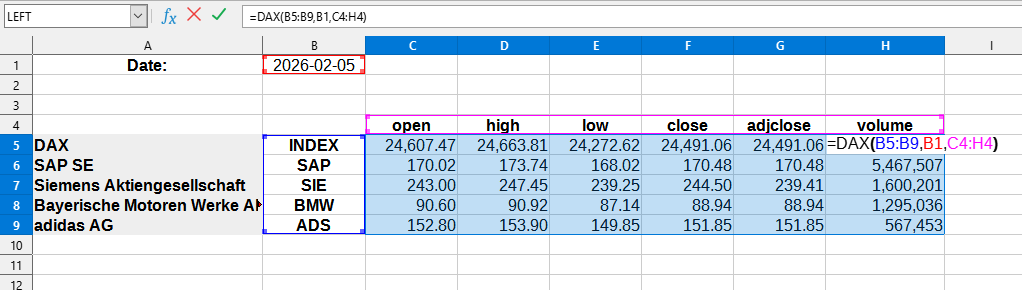
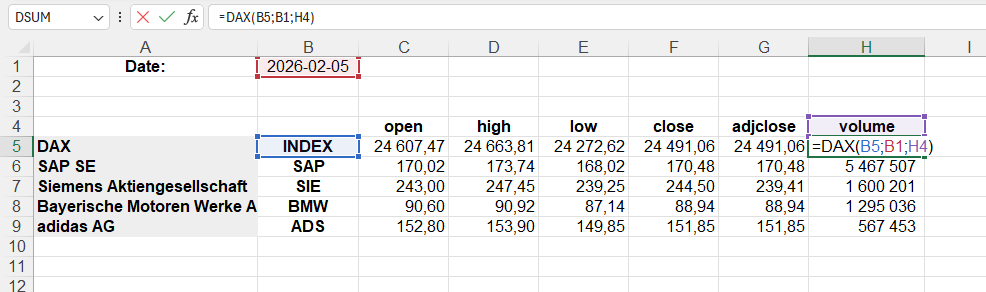
In this example, the following values are used:
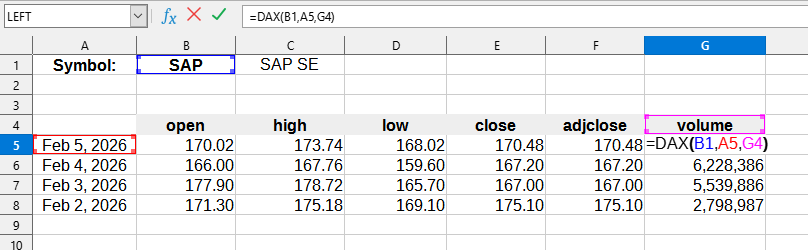
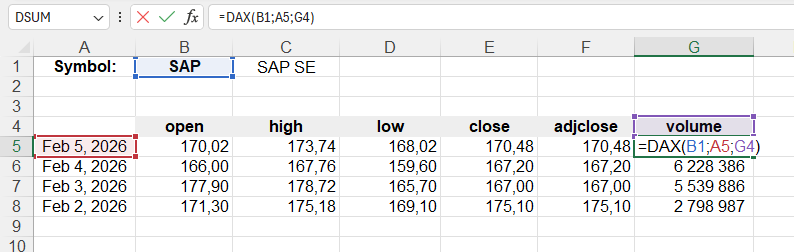
In this example, the following values are used:
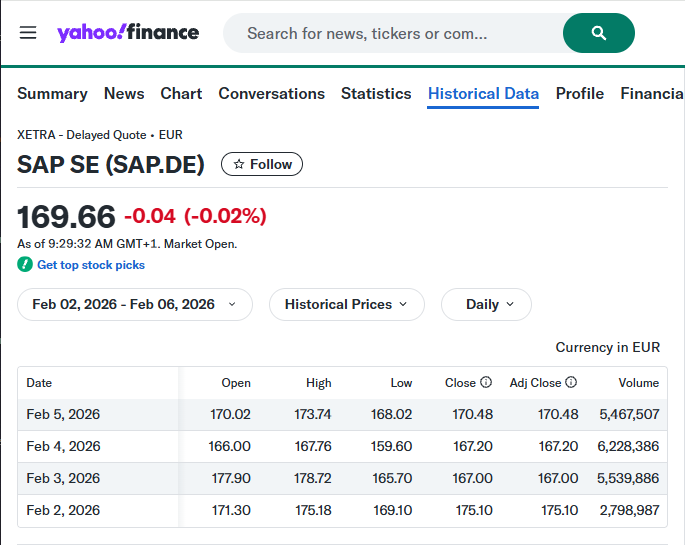
Corresponding data from the Yahoo Finance website:
The DAX() function can work both in normal mode and as an array function.
To use as an array, simply enter the function in any cell, specifying the corresponding parameters. After that, press Ctrl+Shift+Enter to enter the array formula and LO Calc will automatically return a data table.
To select all cells associated with the array formula, simply select any array cell and press Ctrl+/.
If you need to convert an array formula into values - select the entire array and in the
When using a date as text, it must first be converted to a real date, for example:
You can also use ready-made templates to get a stock watchlist for the corresponding index or exchange.
To do this, go to the menu
You can use the DAX() function by installing the YLC Utilities extension.
After that, this function will be available in all files opened in Excel (LibreOffice Calc).